Posts

How to use Bigrock free Email service efficiently

Image
If you land in this page, then you must be a blogger. If you have registered your domain name with Bigrock (As I did), then you would have known about their free email service. Every domain name can have a maximum of 2 custom email addresses. Are you still using your gmail address in your contact page? This's the perfect time to look more professional. How awesome it would be if your email address look like the following one? vignesh@syncwithtech.org It's the email address I use in my contact page. Looks professional nah? Sure, it do. You can also have a custom email address like the one mentioned above. If you don't even know how to create a custom email address with Bigrock, refer this guide . This post is all about how to manage your custom email more easily without messing things up. Let's say you have created an email, from your Bigrock account. How will you use it? What are all you must do to get the most out of it? all of the above questions are answered in this...

6 tips to Reduce Load time of your Blogger Blog

Image
Sure, load time of any web-page makes an impact in its search rankings. Who needs a slow web? Even Google says "The web should be fast". Will you revisit a website which takes more than 5 seconds to load? I will not. Moreover, fast loading web pages enhance user experience. Visitors are the pillars of any successful blog. So, every blogger must take steps to speed up their blog load time. In this post, I have given some tips which would help you to load your Blogger blog faster. Guidelines provided in this article were tested many times and is used by me in this blog. I have provided 2 URLs at the end of this post. Both of the URL contains the same content. One is optimized to load fast using the tips below and the other one is left as it is. Eliminate render blocking Javascripts and CSS This one is the major factor which could degrade your page speed. Render blocking is nothing but hindering the render of the page that means the main content of the page will be prevented fro...

How to share Webpages instantly on any Social Network

Image
Everyday we browse Internet to find something we need. Usually, we tend to come across a well-written article or blog post which we can't wait to share it with our friends. Obviously, this sharing happens online by means of Social networking sites. You are blessed, if you find Social sharing buttons on that site. Otherwise, you have to copy the address of that page and to share it manually which is a tedious task. Because of the above reason, sometimes you refuse to share the awesome webpage you found. It is no longer a problem while there is a solution to solve this. AddToAny is what you need to solve this problem. They provide a nice platform to share the content you see online to 90+ webservices like Facebook, Twitter, Stumbleupon, Linkedin and many more across the Internet. You could also save your article to Pocket, Instapaper, Evernote or bookmark it in Reddit. There is also provision to send the link as an email to your friend. If you are a Chrome user, then there is an ext...

5 uses of VirtualBox you might not know about

Image
All savvy computer users know what is VirtualBox , how and why it is used. But rather than just virtualizing, you can use it for other purposes too. The following things can also be done using VirtualBox in my point of view. For the one who don't even know what is VirtualBox, I recommend you to read the Lifehacker's guide to VirtualBox . Hide your personal files Tired of searching applications to hide your personal files? VirtualBox can give you real solution. You must have used Shared folders in VirtualBox. You could hide files, if the size of your Virtual hard disk is large enough to accommodate your files. Now all you need to do is, just cut and paste the files you want to hide from the Shared folders to the Virtual hard drive. You can retrieve the files from the VirtualBox whenever you need it. Note : One thing must be taken care in this method, if your Virtual hard disk is "Dynamically allocated". This type of hard drive will grow in size, when it is used. (i.e)...

Resuming files from last played position in VLC and KMplayer

Image
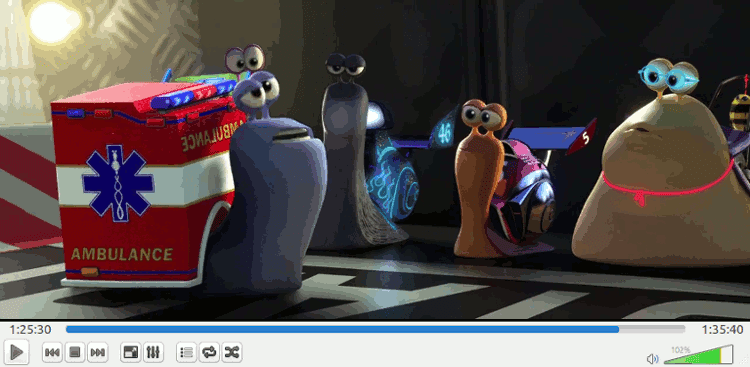
Last Friday, I was watching the animation movie "The turbo". At that time, My friend called and invited me to play cricket. I closed the movie window and was ready to leave home. When I returned to see the movie again, I can't remember the last played position. Sure, it would be awesome, if we could resume movies from the last played position. It is a default setting in the GNU application SMplayer. You can make this possible by changing a default setting in the popular KMplayer. World's most popular media player VLC doesn't seem to have any provisions by default to make it possible. So, in this post I have shared a way to play media files from where we left it in the most popular media players KM & VLC. KMplayer It's simple in KMplayer. Just open KMplayer. Right click inside it's window. Select Playback → Remember Played Position. That's all now whenever you play a file. It will be resumed from the last played position. VLC media player This plug...

How to Increase the Volume of any Media file using VLC

Image
Do you have any mp3 file or video file which has very low volume while you play it? You can easily fix it with the renowned VLC media player. You just need to customize a default preference of VLC. So, you can play the file with high volume. This will not resolve the problem permanently. It's a temporary fix. If you play the file with a different application, the sound would be low. As long as you keep the settings as instructed, you will hear a decent volume. This preference is available only in newer versions of VLC (I tested this with 2.1.3 and it was not available in 2.0.8). Instructions First open the VLC media player. Press Ctrl+P or Select Tools → Preferences. Select 'All' radio button under Show settings at the bottom of the preferences window. Just refer the image given below. Next select Audio. In the right side of preference window, you would see the Audio gain set to 1. Check the following screenshot. You could increase it up to 8. Set a value according to you...

The Ultimate guide to Hard drive partitioning

Image
What we ever want to do when we grab a new PC or laptop? The first and foremost preference is given to partitioning. Whatever the memory of the hard disk, we tend to partition it according to our own needs. 100GB for education, 250GB for entertainment it depends on the person who owns the device. The most general question is could I do partitioning without losing any data or harming the operating system? Answer from my side is yes, you could do partitioning on your own without any risk. So, in this post I have explained how to do partitioning in a PC or laptop. Before you read further : If you don't know anything about booting, partitioning and related stuffs, don't worry. Everything is new to all at the beginning. Just keep at the stream of content flow, I am sure, you will get to know what you need to know to successfully perform the required task.. Partitioning methods MBR - Master Boot Record It's an antique method of partitioning. In this method, you can have a partit...